pfSense
The CrowdSec pfSense integration connects CrowdSec's hosted blocklist endpoint to your pfSense firewall. In pfSense, you'll use URL Table (IPs) aliases to create aliases that periodically download and update IP lists from external URLs.
Step 1 — Create the integration in the CrowdSec Console
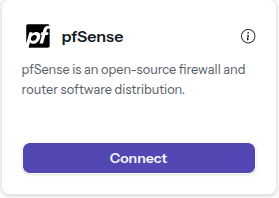
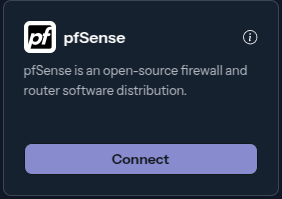
In the Integrations page, click Connect under the pfSense card.
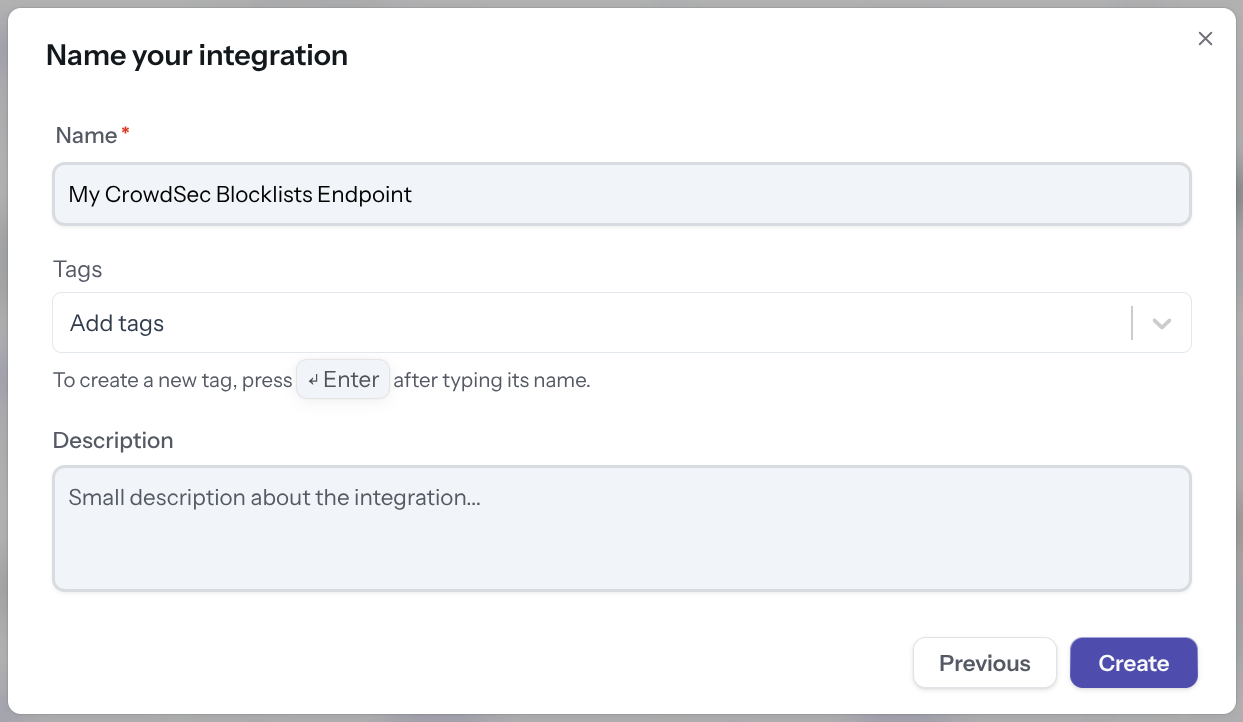
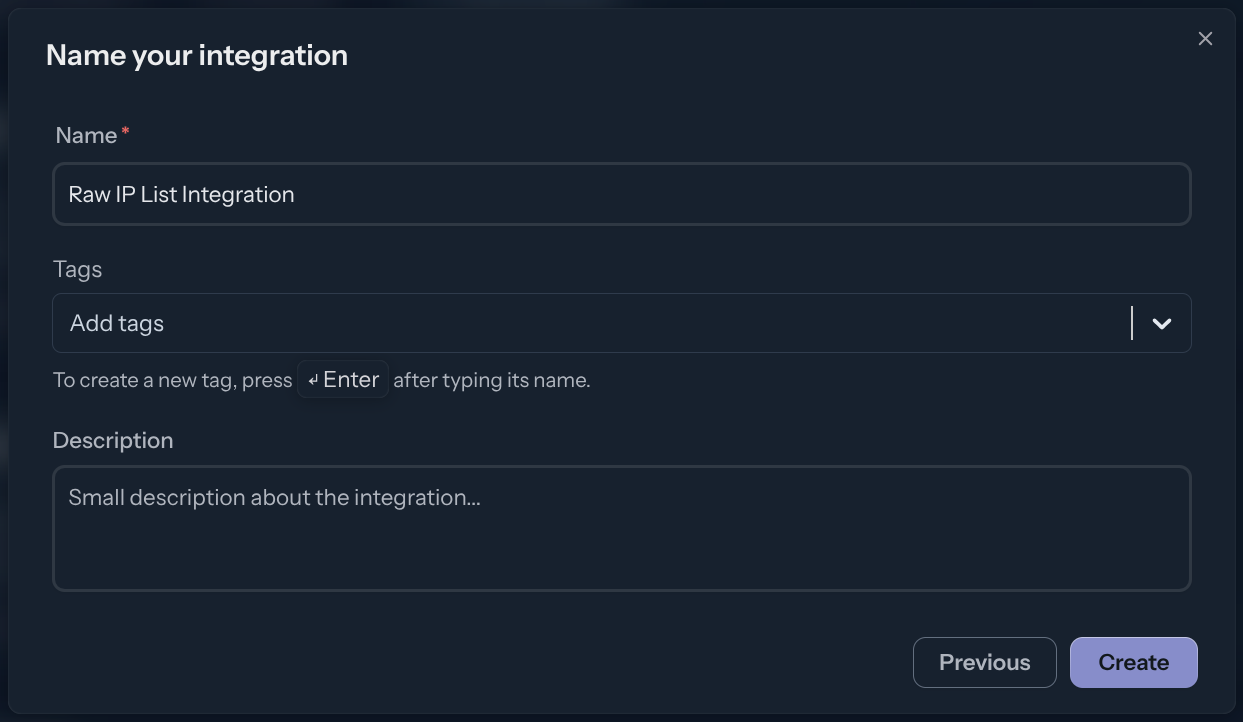
Name the integration (must be unique to your account), then click Create.
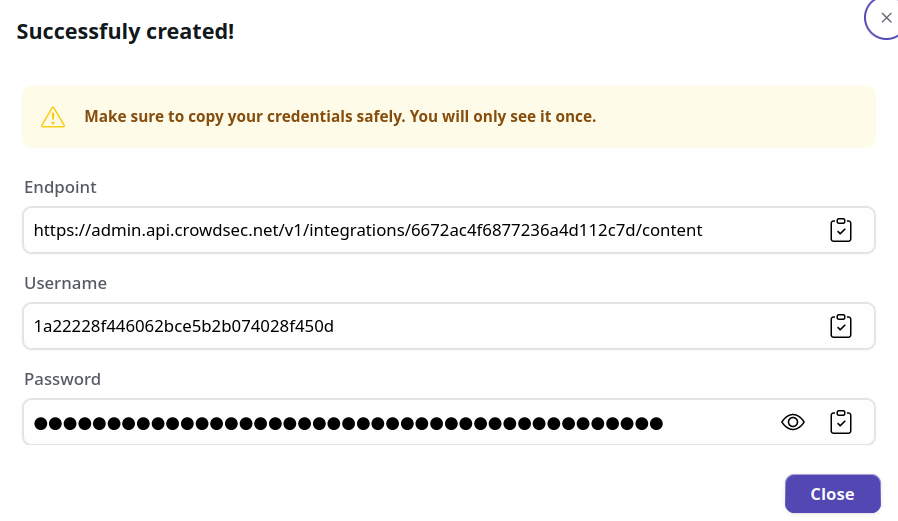
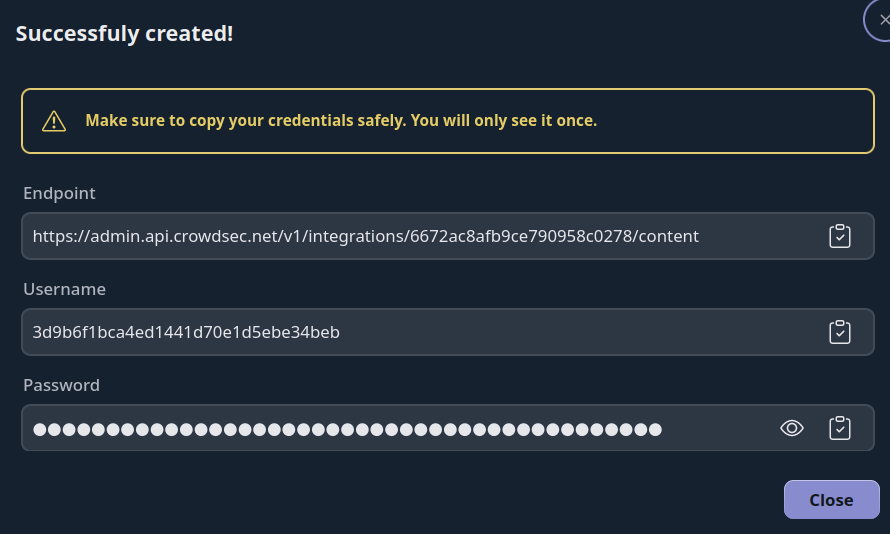
You now have an HTTPS endpoint and Basic Auth credentials to configure on your pfSense device.
Step 2 — Configure pfSense
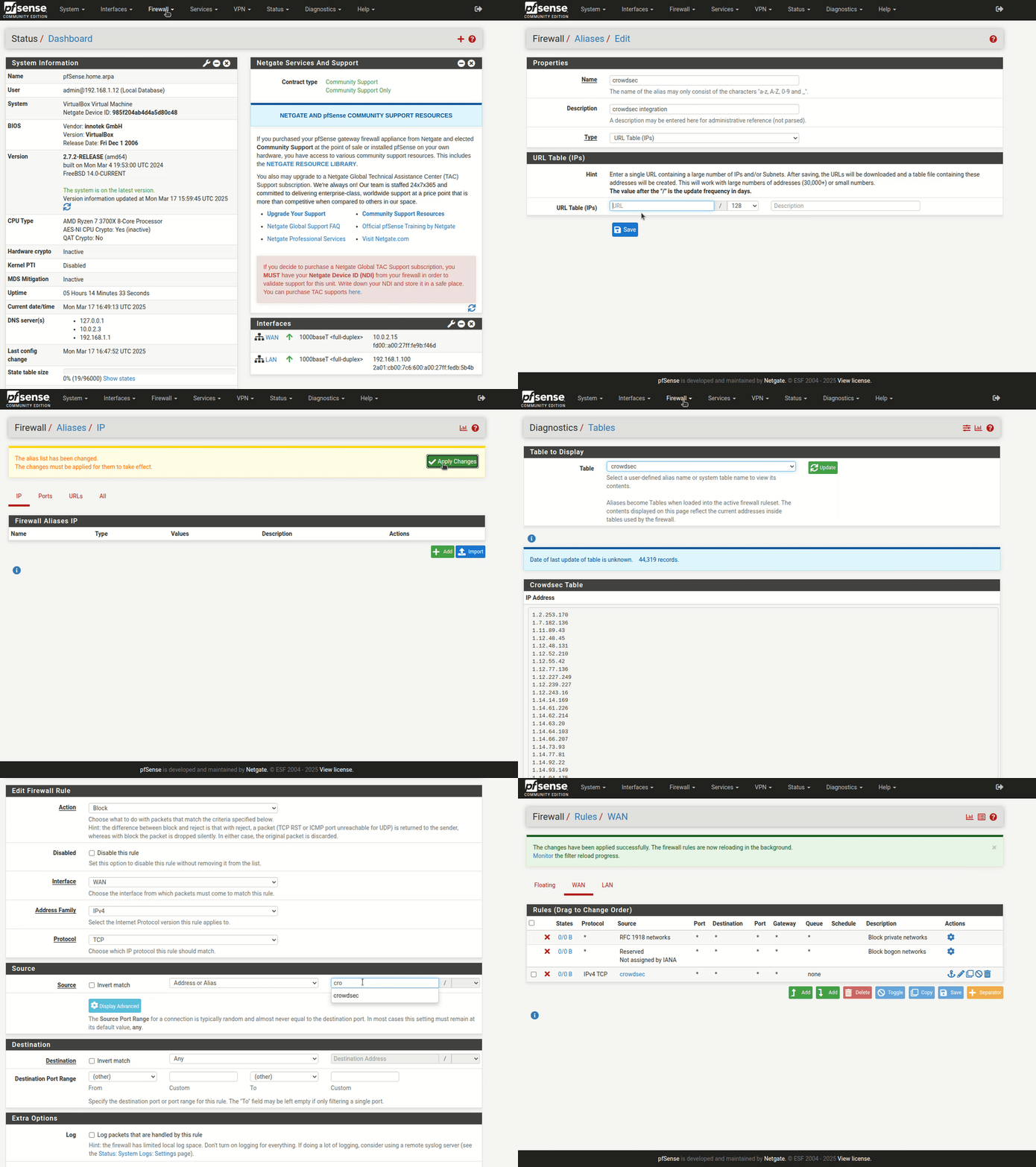
- Create a URL Table (IPs) alias with a 1-day update frequency. Embed the credentials in the URL using Basic Auth:
https://<username>:<password>@admin.api.crowdsec.net/v1/integrations/<integration_id>/content
- Verify the URL alias is resolving correctly.
- Create a firewall rule to block IPs matching the alias.
Here is a walkthrough of the full pfSense configuration:
Manage integration size limits with pagination
If you want to learn how to manage integration size limits with pagination, please refer to the Managing integrations size limits with pagination section.
Next Steps
Subscribe to blocklists in the Blocklist Catalog to populate your integration.