Checkpoint
The CrowdSec Checkpoint integration connects CrowdSec's hosted blocklist endpoint to your Checkpoint firewall.
Check Point calls this feature Custom Intelligence (IoC) Feeds, which provide the ability to add custom cyber intelligence feeds into the Threat Prevention engine.
Step 1 — Create the integration in the CrowdSec Console
In the Integrations page, click Connect under the Checkpoint card.
Name the integration (must be unique to your account), then click Create.
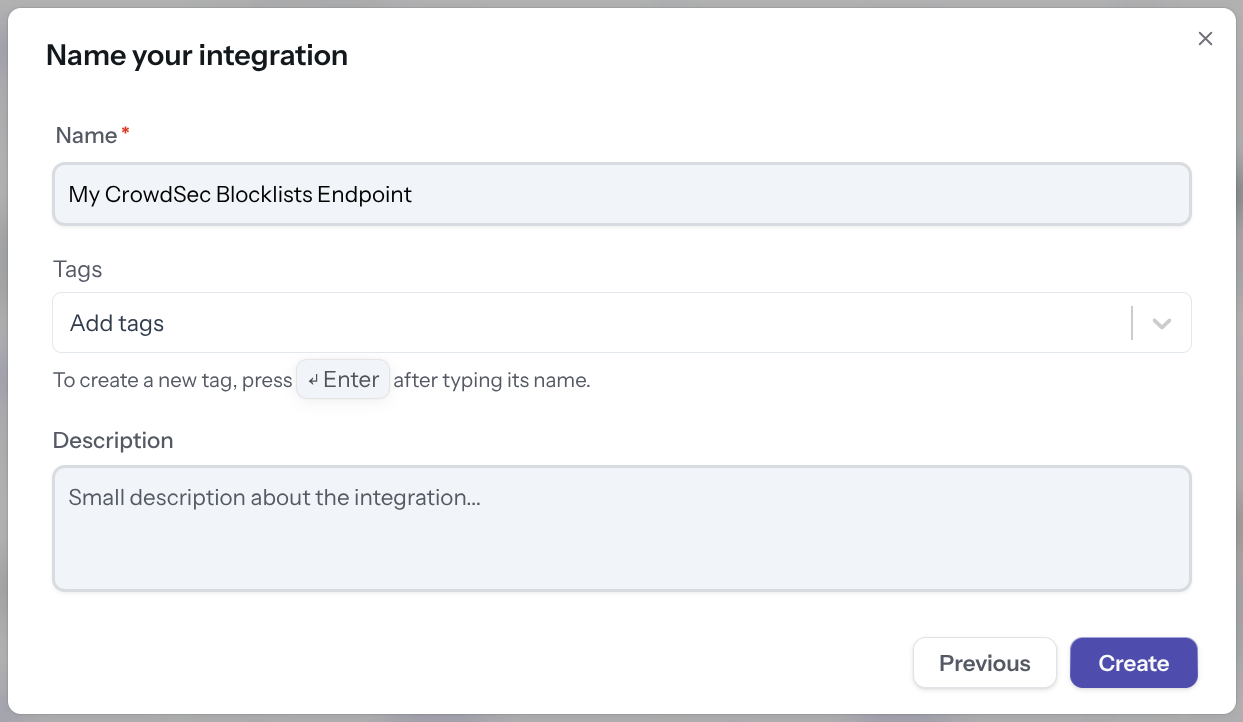
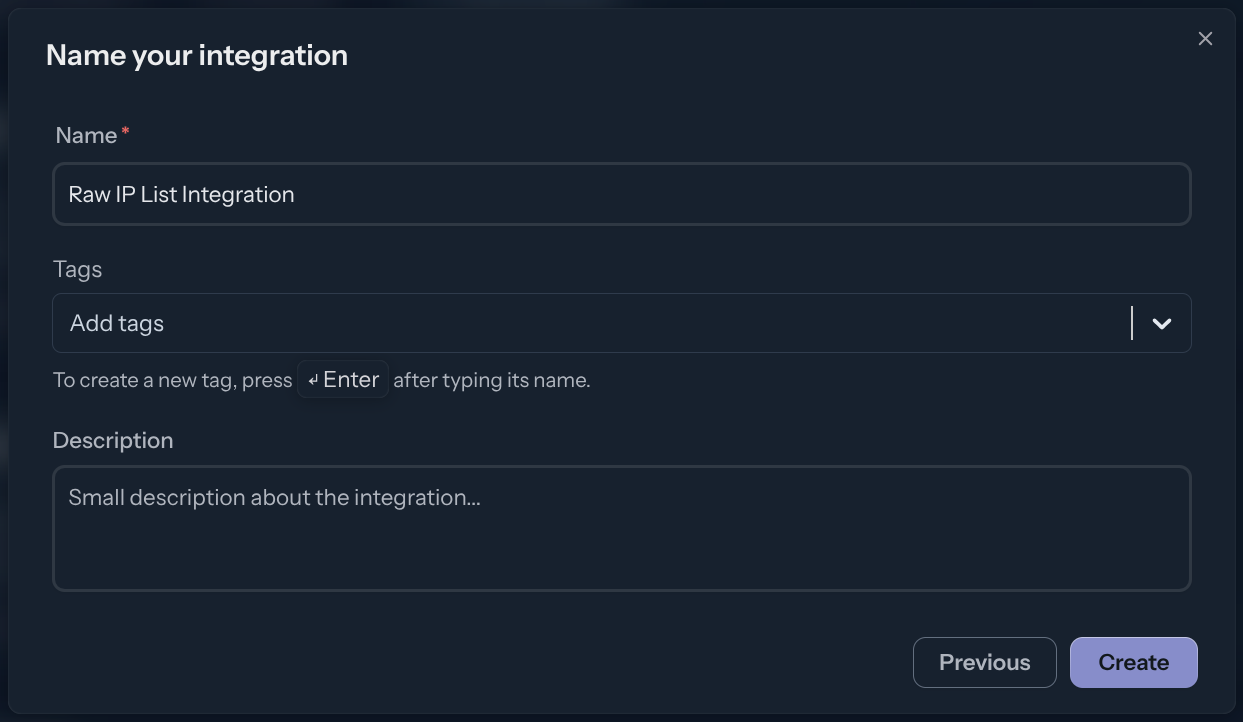
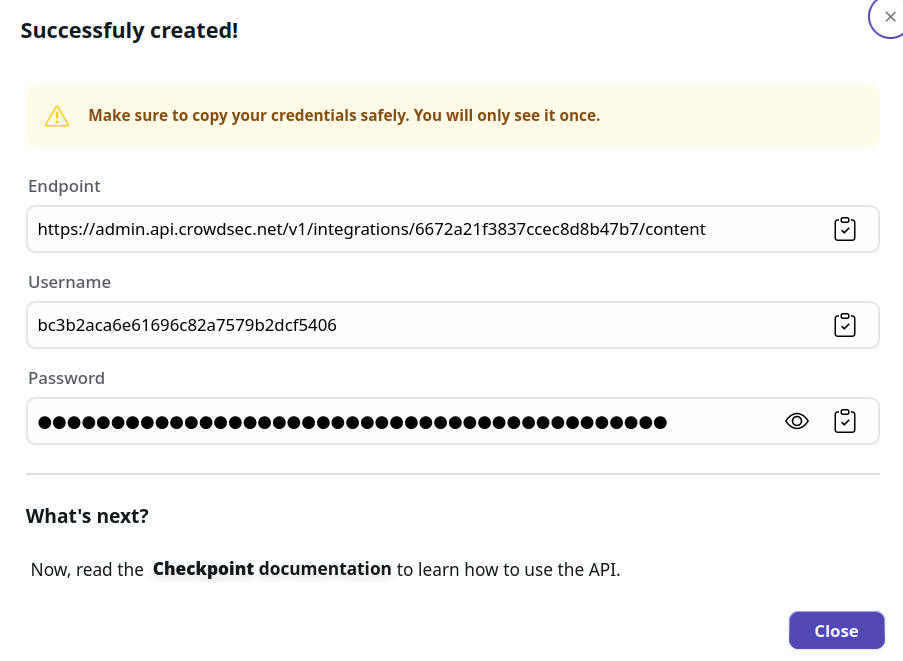
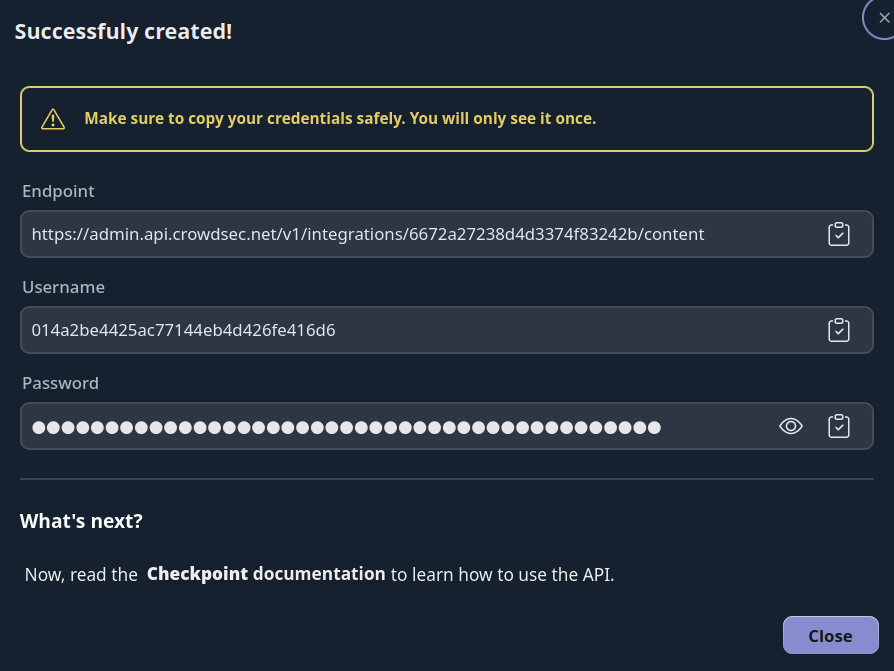
You now have an HTTPS endpoint and Basic Auth credentials to configure on your Checkpoint device.
Step 2 — Configure Checkpoint
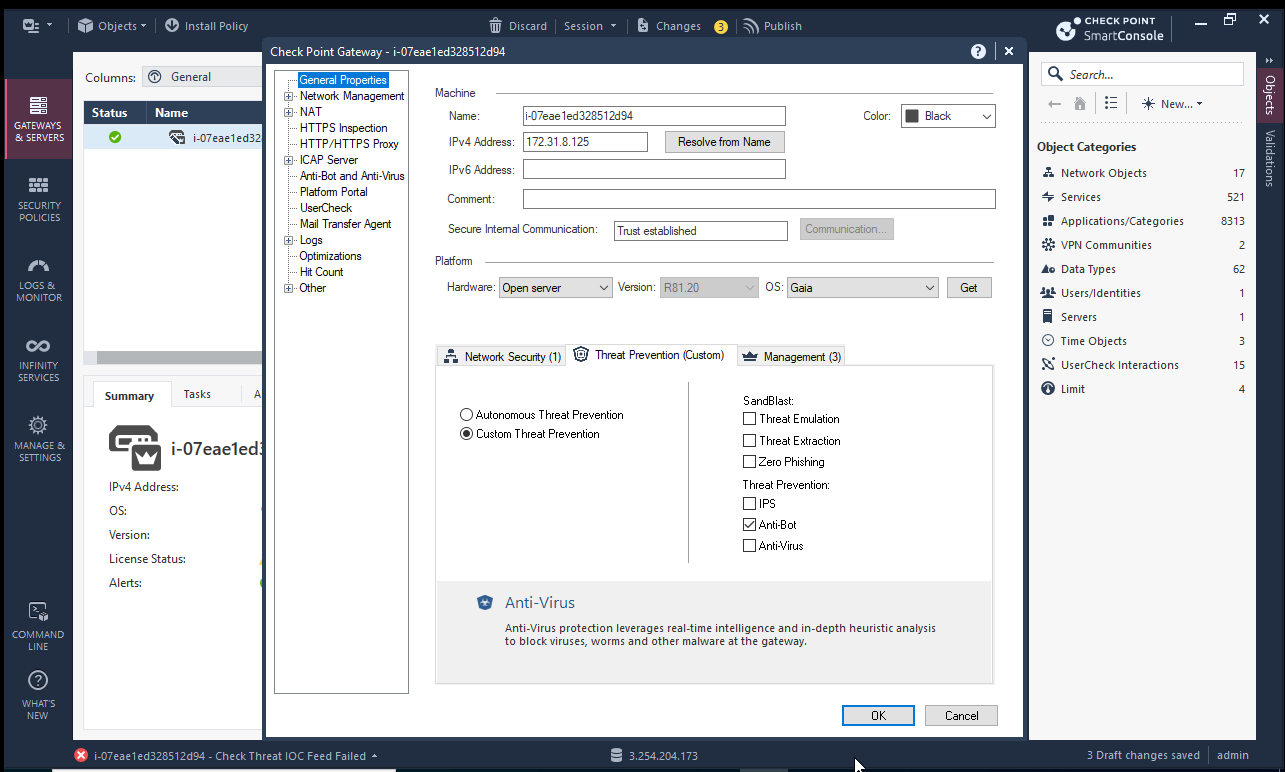
In the Gateways and Servers tab, double-click the gateway you want to configure.

In the properties menu, select Threat Prevention (Custom), then activate at least Anti-Bot or Anti-Virus.
Go to the Security policies tab and click New IOC Feed.
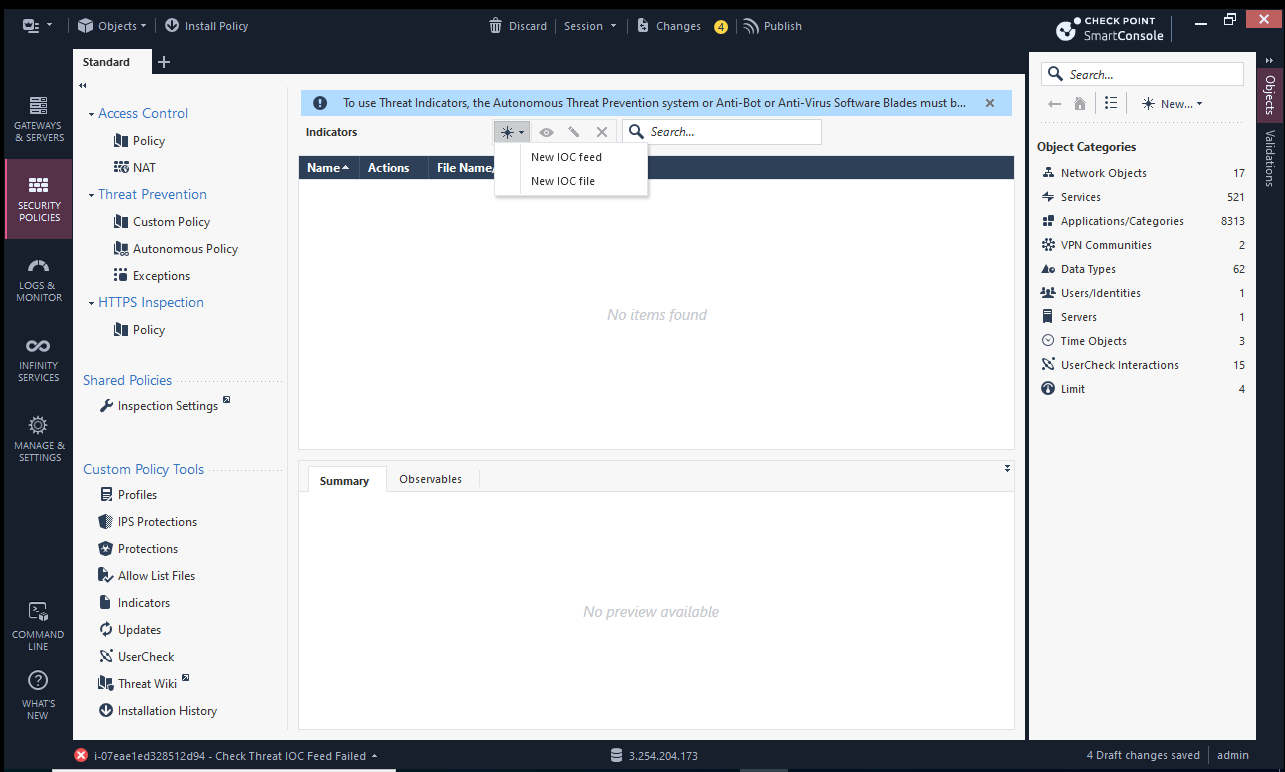
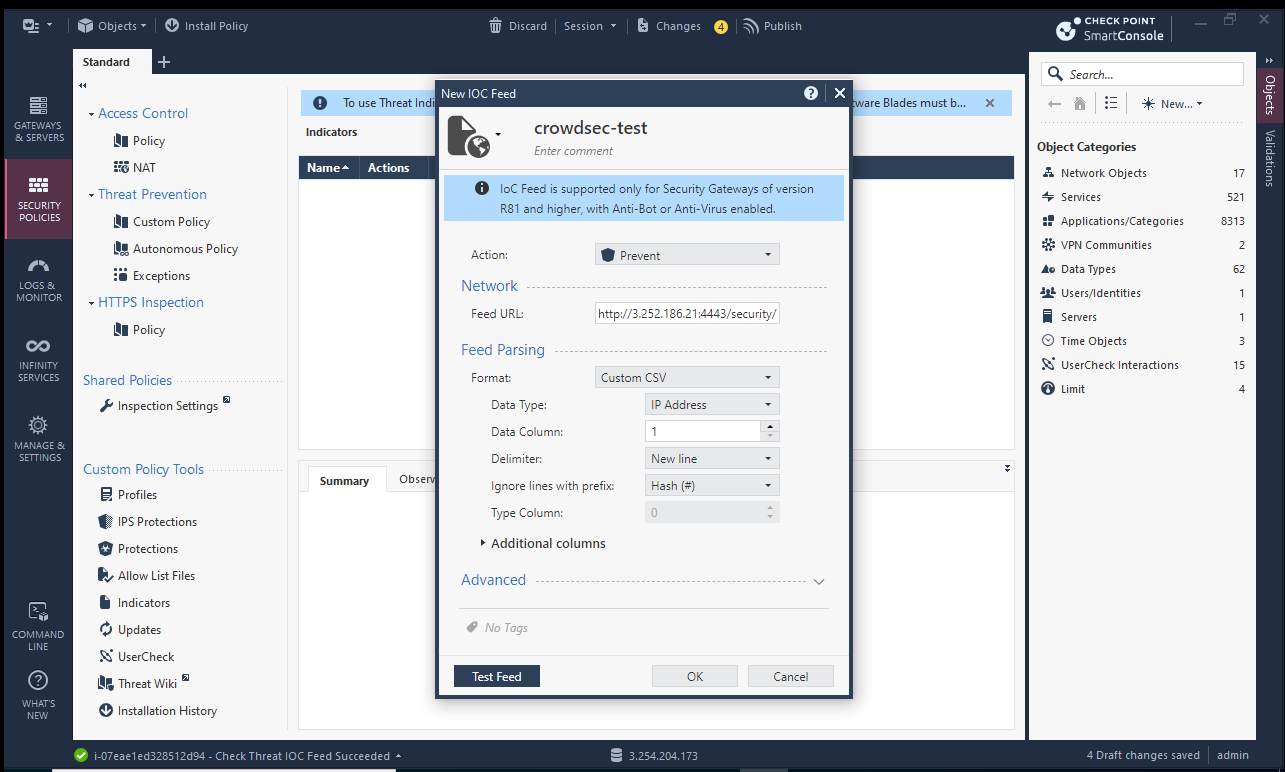
Click Custom Policy, then Indicators. Add your feed information using the endpoint URL with Basic Auth credentials embedded:
https://<username>:<password>@admin.api.crowdsec.net/v1/integrations/<integration_id>/content
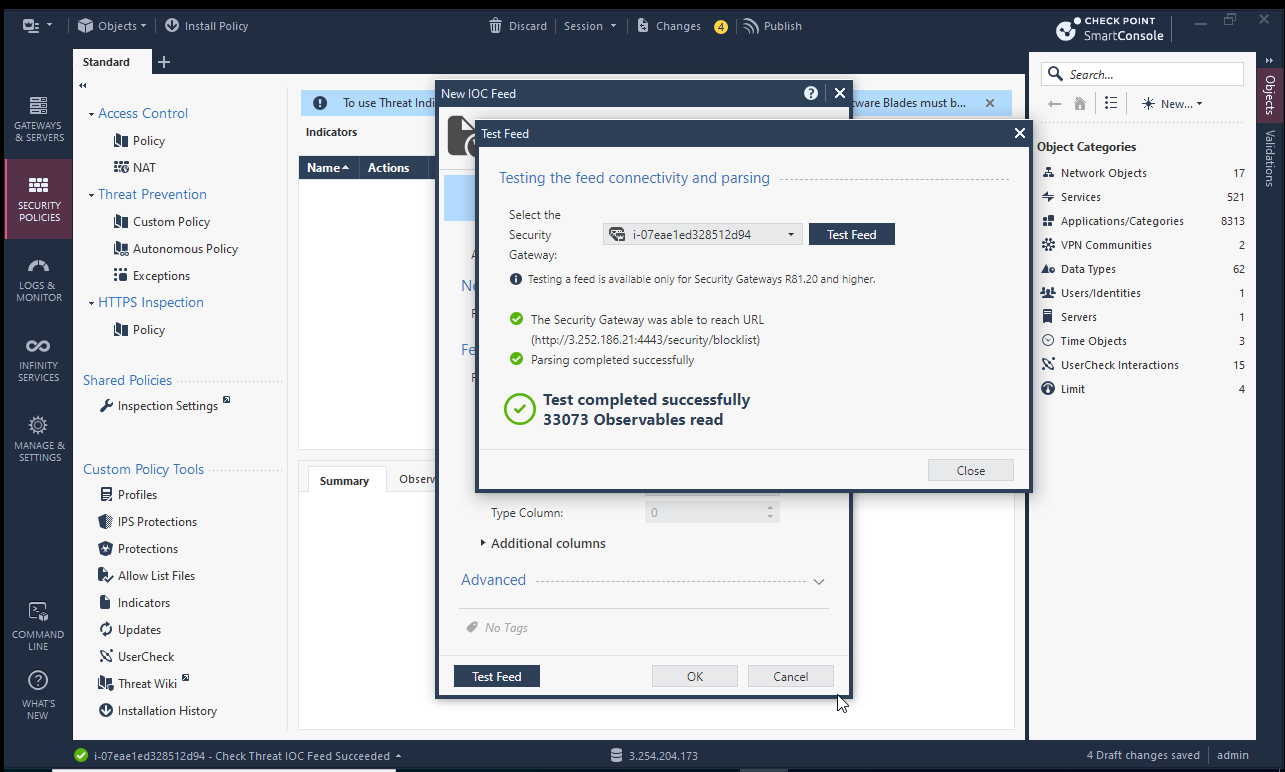
You can use the Raw IP List format and set the data column to 1. Click Test Feed.
Select the gateway and click Test Feed.
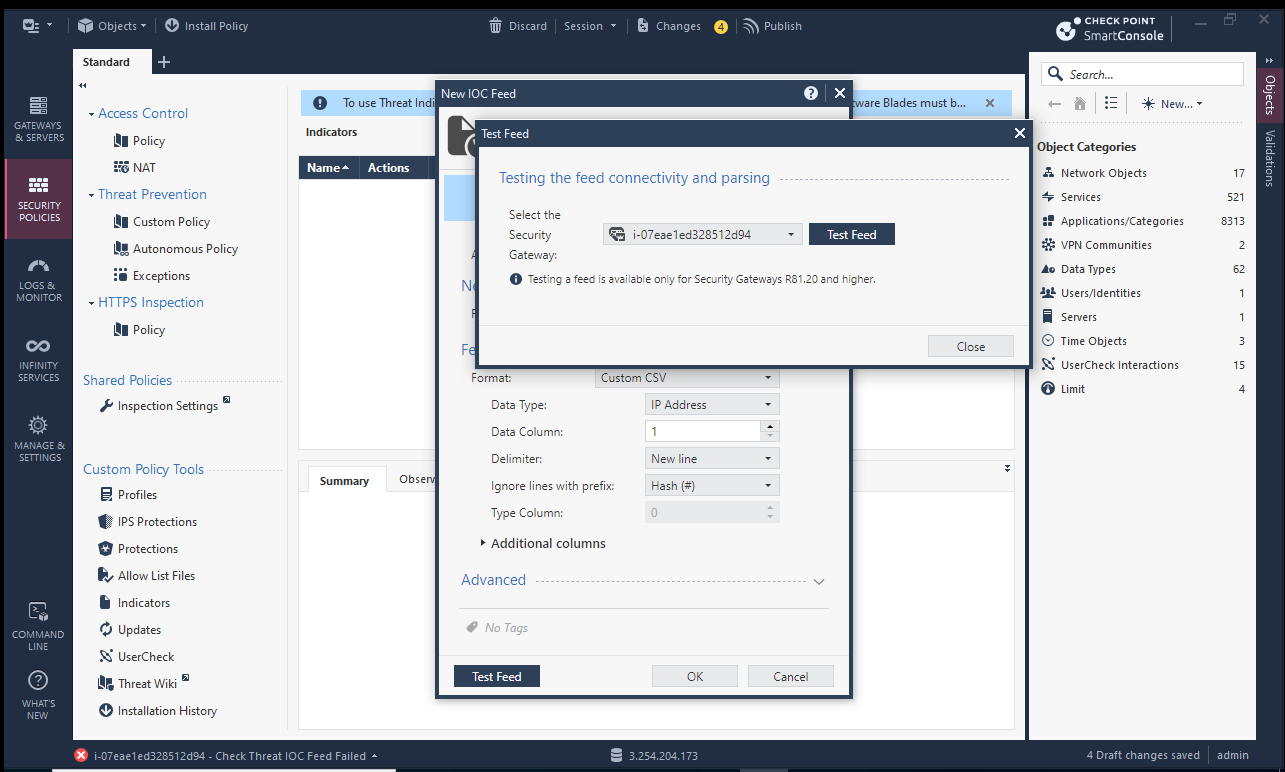
Verify the feed is working, then save the configuration.
Format example
The CrowdSec blocklist is served in Checkpoint format, with one entry per line:
Accessobserv2,192.168.38.187,IP,high,high,AB,C&C server IP
Accessobserv2,192.168.38.188,IP,high,high,AB,C&C server IP
Manage integration size limits with pagination
If you want to learn how to manage integration size limits with pagination, please refer to the Managing integrations size limits with pagination section.
References
Next Steps
Subscribe to blocklists in the Blocklist Catalog to populate your integration.